Free Progressive Web App

Expense tracking
simplified. Reimbursement
accelerated.

Submit expenses, attach receipts, track approvals, and generate PDF reports — all from a single lightweight app that lives right on your home screen.

Open ExpenseFlow

What you get

Everything you need to manage expenses

📎

Receipt Capture

Snap a photo or upload a PDF receipt directly from your phone. Receipts are stored securely and linked to the expense.

📊

PDF Reports

Generate a professional, client-ready PDF report for any date range with one tap — ready to email or print.

Approval Workflow

Submit expenses for approval, track their status (pending / approved / paid), and keep a full audit trail.

🗺️

Mileage Tracking

Log trips with Google Maps distance auto-fill. Calculates the reimbursable amount at your company rate automatically.

🏢

Multi-Client

Manage expenses across multiple clients or projects. Filter, sort, and export per client with ease.

📱

Works Offline

As a PWA, ExpenseFlow loads instantly and works even without internet — syncing when you're back online.

How it works

Up and running in seconds

📲

1. Install

Tap "Install App" below and add ExpenseFlow to your home screen — no App Store required.

✍️

2. Log Expense

Enter the amount, category, client, and attach a receipt photo or PDF.

📤

3. Submit & Track

Submit for approval and monitor the status in real time from any device.

💸

4. Get Reimbursed

Export a PDF report, hand it to accounting, and receive your reimbursement.

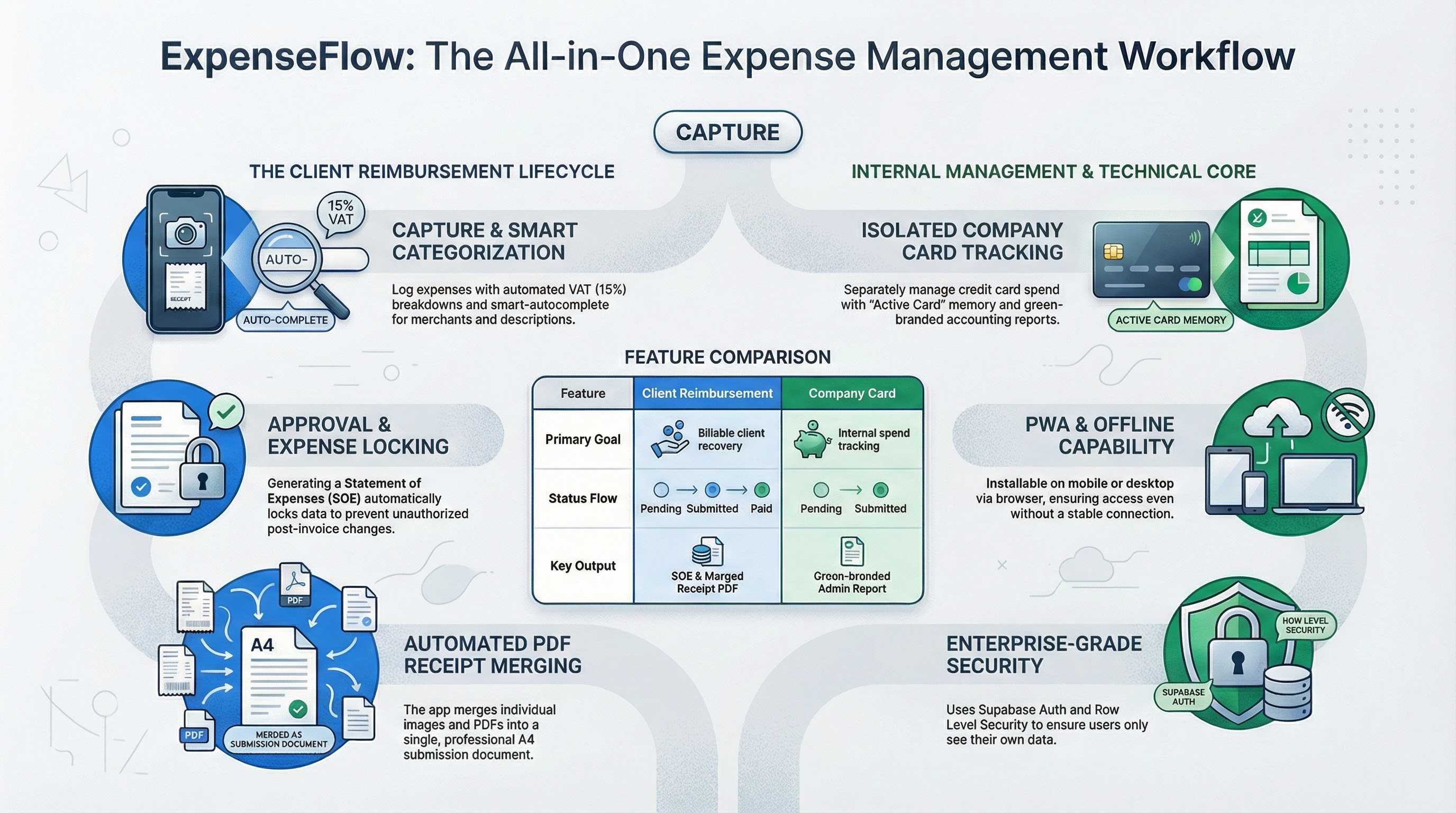
Workflow overview

See how it all fits together

From capturing a receipt to getting reimbursed — the full expense management lifecycle at a glance.

Expense Management Workflow Overview

Click to enlarge

Expense Management Workflow Overview

Works everywhere

No download needed — any device, any browser

🤖 Android Chrome
🍎 iPhone Safari
💻 Desktop Chrome / Edge
🖥️ Desktop Safari
🌐 Any modern browser
Open ExpenseFlow
🍎 Add to your iPhone Home Screen
  1. 1 Tap the Share button at the bottom of Safari (the box with an arrow pointing up).
  2. 2 Scroll down and tap "Add to Home Screen".
  3. 3 Tap "Add" in the top-right corner. ExpenseFlow will appear on your home screen like a native app.